

Before You Enforce Phishing-Resistant MFA, Prove Your Admins Are Ready
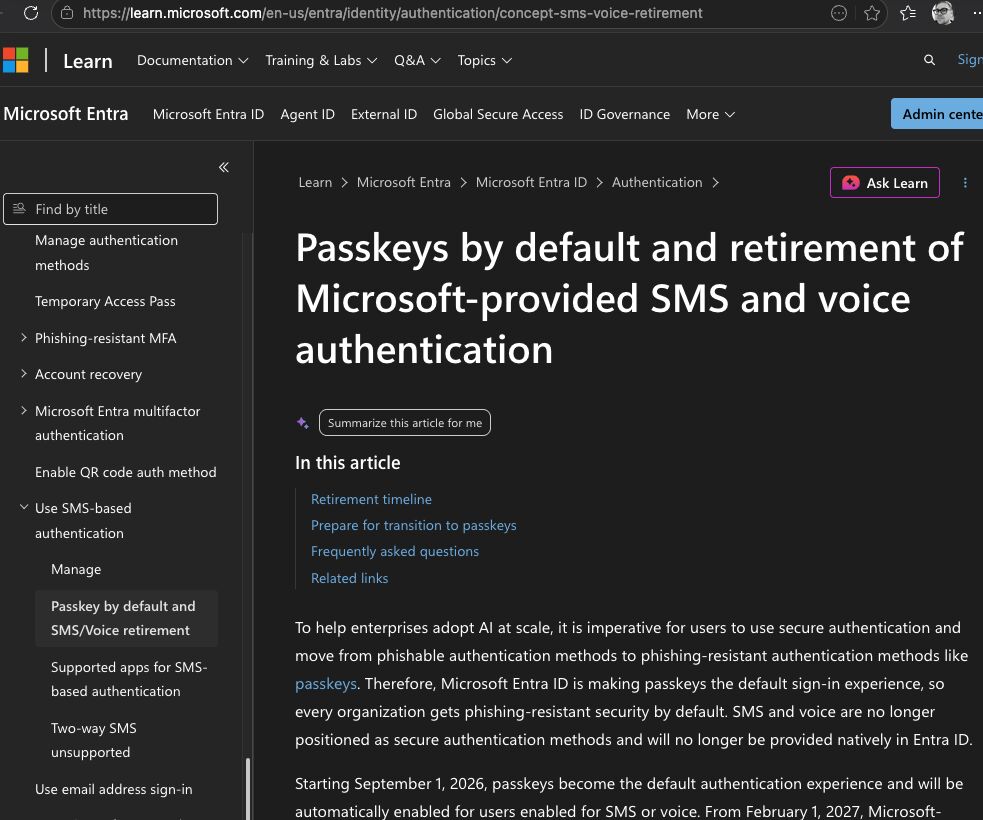
Microsoft Entra supports phishing-resistant authentication through methods including passkeys, FIDO2 security keys, Windows Hello for Business and certificate-based authentication.
Deploying these methods is a sensible security improvement, particularly for Microsoft 365 administrators. However, enabling the policy before checking whether administrators can satisfy it can lock the people managing the tenant out of their own accounts.
We recently saw exactly that happen during an implementation call with an MSP.
Having Microsoft Authenticator configured does not automatically mean phishing-resistant MFA is configured
The MSP was preparing to deploy phishing-resistant MFA through a 365sentri blueprint. One of the administrators checked his account, saw Microsoft Authenticator registered and assumed he was ready.
He enabled the Conditional Access policy using the Click to Remediate function.
About 20 minutes later, he called us back because he could no longer access the tenant.
His account could approve a normal Microsoft Authenticator notification using number matching. That provides MFA, but it does not satisfy Microsoft’s built-in phishing-resistant MFA authentication strength.
A passkey stored in Microsoft Authenticator can provide phishing-resistant authentication. A standard Authenticator push notification cannot.
The distinction is easy to miss because both methods use the same application on the same phone. Microsoft Authenticator supports several different authentication experiences, and those methods do not all provide the same level of protection.
The correct question is not whether an administrator has Microsoft Authenticator. The correct question is whether that administrator has a registered authentication method that can satisfy the Conditional Access authentication strength you are about to enforce.
We were able to help him and roll it back, but, this is not the ideal scenario….
Why administrator readiness needs to be checked first
Locking out one administrator is disruptive. Repeating the same mistake across 10, 20 or 50 customer tenants can create a serious operational problem for an MSP.
The accounts responsible for managing Conditional Access, authentication methods and tenant recovery must be tested before enforcement begins. Otherwise, the people expected to fix the problem may be unable to sign in and do so.
Microsoft also warns administrators to register appropriate phishing-resistant methods before enabling these policies. The policy itself may be configured correctly and still cause a lockout when the targeted accounts are not ready.
How to prepare for phishing-resistant MFA
Check the authentication methods registered to each administrator
Start with the accounts holding privileged Microsoft Entra and Microsoft 365 roles. Check the actual methods registered to each account rather than relying on the presence of Microsoft Authenticator.
Confirm whether each administrator has a passkey, FIDO2 security key, Windows Hello for Business or another method accepted by the authentication strength you plan to enforce.
Accounts relying on Authenticator push notifications, verification codes, SMS or voice authentication will not satisfy the built-in phishing-resistant MFA strength.
Register and test the required method
Every administrator in scope should register an approved method and use it to complete a real sign-in before the Conditional Access policy is enabled. You can do this by running reports on our platform on a connected tenant.
Do not treat successful registration as proof that the deployment works. Test access to the resources the administrator normally manages and confirm that the authentication method is recognised correctly.
If Temporary Access Pass is part of your registration process, test that process as well. Make sure the people responsible for supporting registration know how it works before the wider rollout begins.
Check emergency-access accounts
Review the tenant’s emergency-access or break-glass accounts before changing Conditional Access.
Microsoft recommends maintaining at least two cloud-only emergency-access accounts and excluding them from Conditional Access policies that could prevent their use during an emergency. Those accounts still need secure credential storage, monitoring and regular testing.
An emergency account that has never been tested should not be considered a working recovery plan.
Only run the Conditional Access policy once you’ve done these checks
365sentri usually deploys this as part of a Blueprint bundle, and then you click to remediate. This means that you create the phishing-resistant MFA policy in report-only mode before enabling enforcement.
Report-only mode evaluates sign-ins against the policy without applying the access control. The results appear in the Conditional Access details of the Microsoft Entra sign-in logs.
Review which users and administrators are in scope, which sign-ins would fail and whether any unexpected applications, guests or service scenarios are affected.
Pay particular attention to administrators who would be required to satisfy the policy but do not yet have an accepted authentication method.
Do not Click to Remediate prior to performing these checks or you will get locked out.
Pilot the policy on one tenant
Choose a tenant you understand well and begin with a small group of administrators and users.
Test the applications they use, the registration experience, account recovery and the process your support team will follow if a user cannot sign in.
Leave the pilot in place long enough to capture normal working patterns. A successful login immediately after configuration does not prove that every application and authentication scenario will work.
Expand the deployment in stages
Once the pilot is stable, expand the policy gradually. Add more administrators, then a controlled user group, and review the sign-in results before moving to the remaining population.
Repeat the process for each customer tenant. Tenant licensing, existing Conditional Access policies, authentication registrations and operational requirements can differ even when the same blueprint is being used.
Use the customer’s normal approval, maintenance and rollback processes throughout the deployment.
Checking phishing-resistant MFA readiness with 365sentri
Following the administrator lockout described above, we created a 365sentri report to make this readiness check easier.
After user synchronisation has completed, the report identifies administrators and users who have a phishing-resistant authentication method and those who still rely on methods such as standard Authenticator notifications, SMS or voice authentication.
The report can be run across connected customer tenants, giving an MSP a fleet-wide view before enforcement begins.
This allows the deployment team to find accounts that need attention, prepare administrators, plan user registration and document the starting position before changing the Conditional Access policy.
If your security standard includes retiring SMS and voice-based authentication, the same report can help identify the remaining accounts that depend on those methods.
Do not use a lockout as your readiness test
Phishing-resistant MFA is an important improvement for Microsoft 365 security, especially for privileged accounts. The risk comes from enforcing it before the targeted accounts are capable of satisfying it.
Check the registered methods, prepare administrators, validate emergency access, use report-only mode and complete a controlled pilot before enabling the policy across a customer fleet.
The Microsoft Authenticator icon is not evidence that an account is ready. The registered authentication method is what matters.
Want to see which accounts across your customer fleet are ready for phishing-resistant MFA?
Microsoft guidance:
phishing-resistant MFA for administrator roles,
Conditional Access report-only mode, and
emergency-access accounts.